Ask for a view, put a slot in one of your own pages, and pin the finished screen into your grid.
Ask your agent for something to look at and a real screen comes back, live on
your data. These three steps give one of those screens a permanent place in
your product.
This page picks up from a running install. If you have not mounted the panel
yet, start at the quickstart — you need
<VendoProvider> mounted, a model key, and your dev server running before
step 1 will do anything.Run npx vendo doctor if you are not sure. A screen can only read a tool that
answers without asking, so if doctor reports ungraded tools, run
npx vendo sync --ai first.
1
Ask the panel for a view
Ask in plain language. The screen builds in the thread, on your own API’s data,
in your brand.
One ask, one screen. The bar carries the placement action.
One line in your brief tips the agent toward a screen when the answer is a
shape rather than a sentence.
.vendo/brief.md
Prefer a useful generated view when a chart or table communicates the answerbetter than prose.
That is the whole nudge. Instructions is the rest of the
brief.
2
Put a slot in your page
A slot is a place in one of your own pages that a generated view can occupy. It
comes from @vendoai/vendo itself, so there is nothing extra to install.
app/overview/page.tsx
"use client";import { VendoSlot } from "@vendoai/vendo/react";export default function Overview() { return ( <section className="cards"> {/* your own components */} <BalanceTiles /> <VendoSlot id="spend-breakdown" emptyState={{ suggestions: [ "Show my spending by category", "Track my savings goals", ], }} /> <RecentActivity /> </section> );}
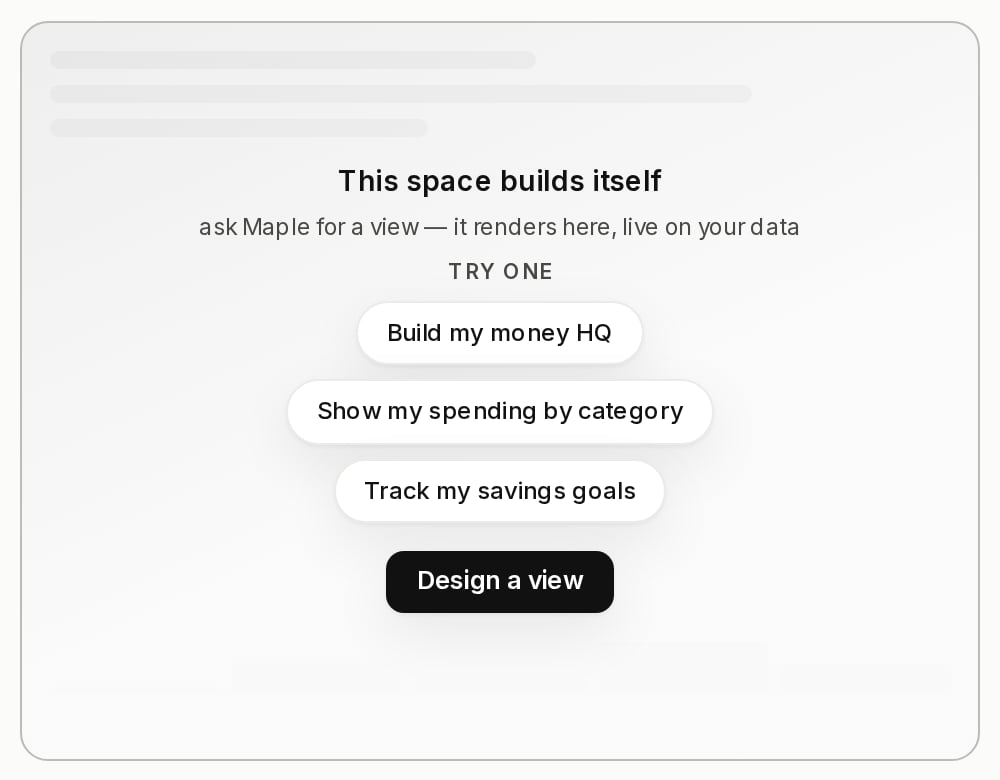
Empty, it invites: a skeleton, up to three prompt chips that prefill the
composer, and a button that opens the panel.
The slot is the whole wiring. A slot that exists is already a destination, so
every finished screen grows a placement action on its bar: a one-click Pin to
dashboard with one slot in your product, an Add to… picker of your slots
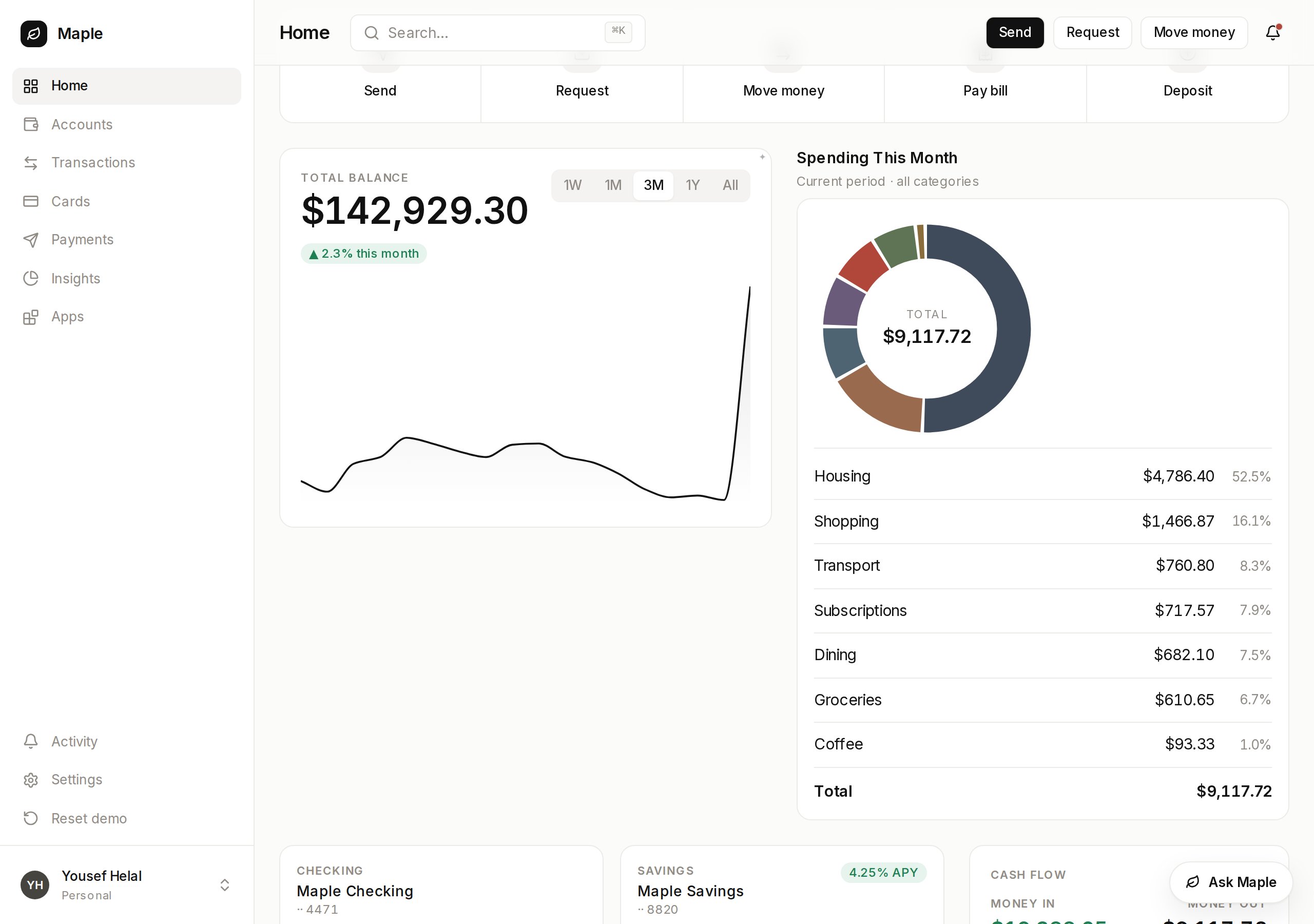
with several.Press it and reload the page. The screen holds that spot and re-runs on every
open, so it opens on today’s numbers.
Your page, your grid. The card in the middle is generated.
Every screen is compiled, scanned, type checked, and run once before anything
paints. A refusal names the line, and the last good screen keeps serving.
What a screen may write.
Pinning only gives a screen a place. Each one is already an app with its own
id, kept in the person’s own list, so an unpinned one can land in a slot
later. Generated apps.
Register your own React components and a generated screen renders your real
UI instead of the built-in kit.
Host components.
Nobody uses someone else’s app. Sharing one mints a fresh copy that reads the
new owner’s rows under their approvals.
Import & fork.
A screen reads your API through your tools, so it needs their shapes. If
vendo init reported blind tools, add an openapi.json at your app root
and run npx vendo sync — without it a screen builds but paints “returned
data in a shape this screen doesn’t recognize”.
Pins are per person. Until you wire auth, every visitor is the
same anonymous principal, so one person’s pinned screen is everyone’s.
⌘I
Assistant
Responses are generated using AI and may contain mistakes.