> ## Documentation Index
> Fetch the complete documentation index at: https://docs.vendo.run/llms.txt
> Use this file to discover all available pages before exploring further.
# Vendo's Full-Stack Agent
> Your agent as a panel inside your own product, in your own brand.
Vendo brings the loop, the model, and the chat surface. You paste three things
into your own client.
This picks up after the two commands on the [main quickstart](/):
```bash npm theme={null}
npm install @vendoai/vendo
npx vendo init
```
```bash pnpm theme={null}
pnpm add @vendoai/vendo
pnpm exec vendo init
```
Those leave you `app/api/vendo/[...vendo]/route.ts` written, and a model
credential settled.
Which credential depends on how you answered init's models question. **Vendo
Cloud** ran the browser login and put a `VENDO_API_KEY` in `.env.local`.
**Bring my own key** took your paste and put it in the same file, under
`ANTHROPIC_API_KEY`, `OPENAI_API_KEY`, or `GOOGLE_GENERATIVE_AI_API_KEY`.
**Decide later** wrote no key at all — the steps below still work, and
`vendo login` (or your own key in `.env.local`) is what makes the first turn
answer. [Model credentials](/production/model-credentials) covers all three.
Paste what init printed into your client layout. Your paths and theme are
already filled in.
```tsx app/layout.tsx focus={7} theme={null}
import { VendoProvider } from "@vendoai/vendo/react";
import type { VendoTheme } from "@vendoai/vendo";
import theme from "../.vendo/theme.json";
// in your own RootLayout, props type untouched:
{children}
```
Leave that props type alone. Next already types `children` for you —
create-next-app writes `Readonly<{ children: React.ReactNode }>`, and an app on
typed routes has a generated props type of its own — so annotating it again as
`{ children: ReactNode }` only throws away what your app already knows.
`baseUrl` is where the route is mounted, path prefix included. An app served
under `/maple` passes `baseUrl="/maple/api/vendo"`.
One line inside the provider puts your agent on every page. It opens over your
app, or docks beside it with `placement="dock"`.
```tsx app/layout.tsx focus={1,5} theme={null}
import { VendoOverlay, VendoProvider } from "@vendoai/vendo/react";
{children}
```
Prefer a command bar? Mount `` beside the overlay and `⌘K`
opens the same panel in its compact form.
Put a slot where a card would go. A screen the agent builds can live there
instead of in the panel.
`VendoSlot` comes from the package you already installed — no second one.
The id and the file are both yours. `spend-breakdown` on a bank's overview page
is this example's choice: pick any string, and put the slot on whichever page you
want the surface to appear on. The one rule is that the same string appears in
both places — on `VendoSlot` here, and on the provider's `pinSlot` below.
```tsx app/overview/page.tsx focus={3,9} theme={null}
"use client";
import { VendoSlot } from "@vendoai/vendo/react";
export default function Overview() {
return (
);
}
```
Name that slot on the provider. It is where the panel's pin button sends a
finished view.
```tsx app/layout.tsx focus={4} theme={null}
```
Empty, the slot shows a ghost with prompts that open the panel. Ask for a
view, press **Pin to dashboard** on the card that comes back, and it renders
in your grid and stays there.
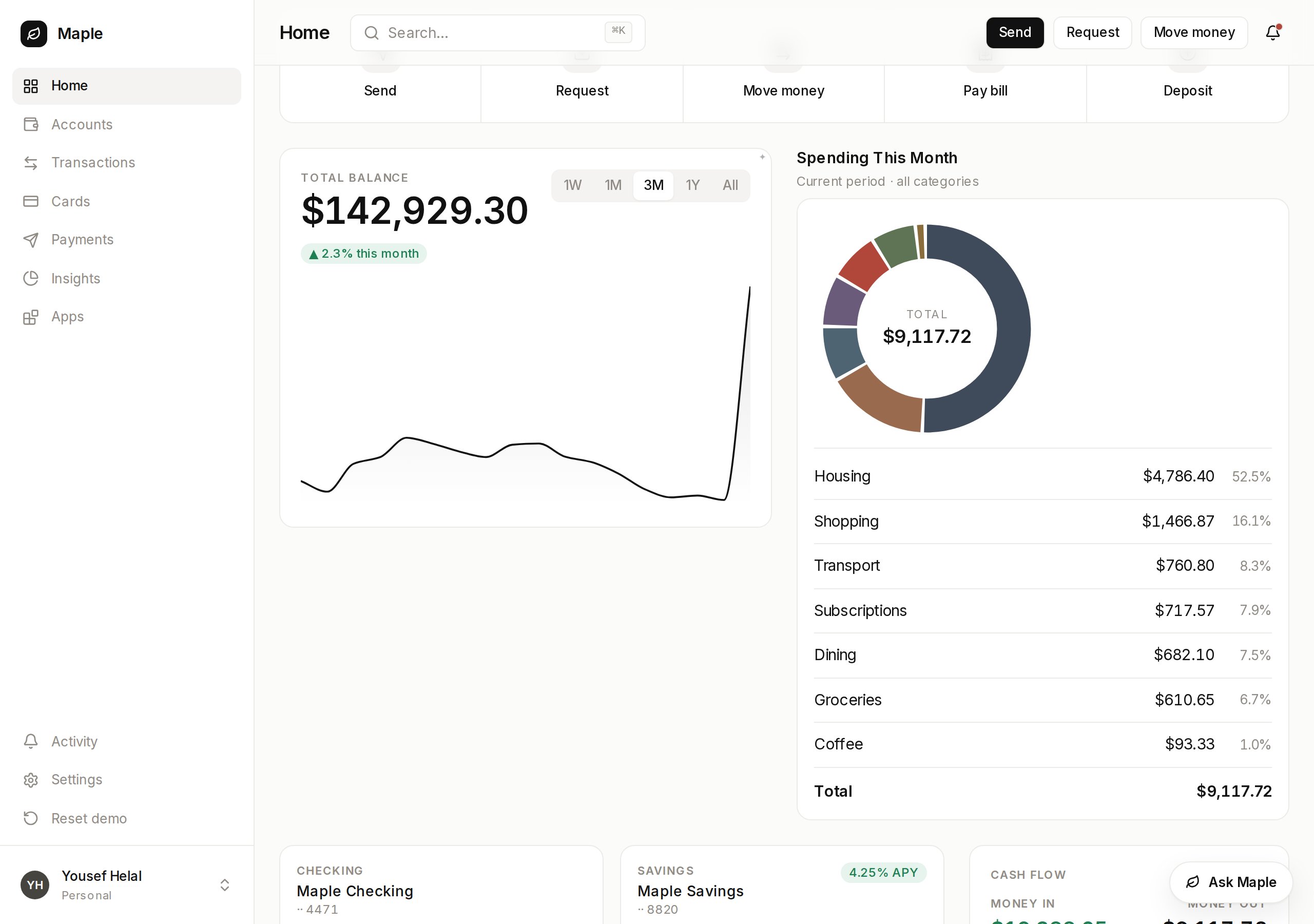 Start the app and click the launcher pill in the corner.
```bash npm theme={null}
npm run dev
```
```bash pnpm theme={null}
pnpm dev
```
Ask for something you would otherwise click through to, like "Where did my
money go?" The agent calls your own API as the person signed in, and answers
with a screen instead of a paragraph when the answer is one to look at.
Start the app and click the launcher pill in the corner.
```bash npm theme={null}
npm run dev
```
```bash pnpm theme={null}
pnpm dev
```
Ask for something you would otherwise click through to, like "Where did my
money go?" The agent calls your own API as the person signed in, and answers
with a screen instead of a paragraph when the answer is one to look at.
 ## Where to go next
The surface is up. These three are what people change first.
## Where to go next
The surface is up. These three are what people change first.
What the panel does, and what runs on your side.
`app/api/vendo/[...vendo]/route.ts`
Fonts, colors, and radii, taken from your own tokens.
`.vendo/theme.json`
Real screens built from your data, pinned where you want.
``